
Getting started
What is Hideout?
Hideout is a pixel-art virtual office for remote teams, designed to make working together feel as close as sitting in the same room — instead of just another grid of video-call faces.
Your team gets its own pixel characters that walk around the virtual office. See where teammates are sitting, whether they're busy or free, and walk right over to talk — no scheduling, no camera left on all day.
This guide walks through Hideout's main features, from building your team's own floor plan, to real-time presence, private desks, and statuses, all the way to team and plan management. It's built for admins setting up an organization for the first time, and for members getting familiar with the features.
Enter Hideout in one click
Try it right away, no sign-up required. Start here
Get started in 5 minutes
These steps will get your team up and running on Hideout quickly.
- Set up your floor plan — use the Room Builder to drag and drop furniture and arrange zones such as desks, meeting rooms, and lounge corners.
- Invite your teammates — send an email invite or share a join link directly.
- Create your character — pick the look of your pixel character and jump straight into the office through the web browser.
Works instantly in the browser with nothing to install, supporting the latest Chrome, Safari and Edge — or install the desktop app for Windows and macOS if you prefer.
Download the app
Besides the browser, Hideout also has a desktop app for Windows and macOS. Every feature is identical to the web version, since it runs the same Hideout — the app just adds the convenience of being a real app.
- Push to talk from any screen — press the talk button even while working in another program, without switching back to the Hideout window first.
- Lives in the system tray — tuck it away without closing it, and set it to launch automatically when your computer starts if you like.
- Never lose it in your tabs — Hideout has its own window, separate from a browser full of other tabs.
System requirements: Windows 10 or 11, 64-bit, or macOS 14 (Sonoma) or later on an Apple Silicon chip. Sign in with your existing account — no new sign-up needed — and all your team data is the same set as on the web.
Download Hideout for desktop
Pick the Windows or macOS build from the home page.
Go to the download pageCore features
Build the office your way
Room Builder is a drag-and-drop layout tool that lets team members with permission design the whole workspace themselves — desks, chairs and meeting rooms through to lounge and coffee corners.
- Drag and drop furniture — choose from a pixel-art furniture library across several categories (furniture, painting, construction, zones).
- Rearrange any time — reshape the workspace as the team size changes, at no extra cost (*admin-only feature).
- Define work zones — set up areas, private desks and public rooms (*admin-only feature).
Every layout change syncs to all members in real time, with no page refresh.
Characters and controls
Your pixel character represents you in the office, controlled simply with the keyboard.
- Moving your character — use the arrow keys or WASD to move in real time.
- Changing floors — walk up to the stairs to go up or down a floor, or use the lift to pick a floor from the menu (features that walk your character automatically, such as following someone or accepting an invitation to come over, always use the stairs).
- Sitting down — stand next to a chair and press
Eto sit, or pressGto sit right where you are without a chair. - Zooming the map — use the zoom control in the top bar to zoom the map in and out.
Open the account menu (top bar) to change your display name, or go to "Customize character" to pick a body, eyes, outfit, hairstyle and accessories from the available set. Your profile picture is generated automatically to match your chosen look.
Click your own character to play a short reaction for people nearby, and press N at any time to hide or show the nameplates under everyone's character.
Real-time presence
See where teammates are and their status instantly. Walk over and talk like you're in the same office — no scheduling, no sending a message first to ask "are you free?".
- See everyone's character — know instantly who is online, which desk they are sitting at, or which room they are meeting in.
- Walk over and talk — when two characters are close, audio and chat open automatically.
- Screen share and video calls — start a screen share or video call as soon as you are within earshot, without switching apps.
Set your status to Online, Idle, or Do Not Disturb from the control bar at the bottom of the screen. Idle simply lets others know passively; Do Not Disturb locks your position and blocks incoming calls and invitations. You can also set a "mood" (sleepy, stressed, thinking) that appears as a badge on your profile picture and above your character — purely expressive, with no effect on how things work.
Open the member list to see who's in the office, or open Chat to message everyone. To chat one-on-one, click on someone's character or nameplate and select "Private message." The same menu also has "Ask to come to me," which brings them over once they accept, and "Follow," which makes your character keep following them until you stop.
Public rooms & private desks
Office spaces come in two types, differing in who can enter and who can decorate.
- Public rooms — named zones on the map that anyone can walk into without booking; every member can place and remove furniture there.
- Private desks — walk up to a free desk and press
Eto claim it as yours (one desk per person, per organization). Only the owner can decorate it, and releasing the desk doesn't clear its furniture — whatever's placed stays for the next owner to deal with.
If you want to control who can enter your desk, switch it to request-to-join mode. Others then have to ask to join and wait for you to accept. Once accepted they can come and go freely from then on without asking again, until you switch the desk back to public.
Ambient audio
Talk with anyone in the same room without joining a call each time — just like talking in a real office. Volume rises and falls based on how close your characters are (proximity audio), so multiple conversations in the same room don't blend together.
- Proximity audio — the closer characters are, the clearer the audio; further away it fades out gradually, with a dashed circle showing how far you can still be heard.
- No need to join a call — walk up to any group and you hear their conversation immediately.
- Distance does not apply in zones and desks — once inside a public room or a desk, everyone there hears each other no matter how far apart they stand.
Headphones are recommended for the best audio, especially in rooms with several conversations at once.
Team & account
Invite members and roles
Organization admins can invite new members and assign roles from the organization settings page.
- Email invitations — send invitations to join the organization by email.
- Join links — create an invite link the team can use to join without waiting for an email.
- User roles — grant admin rights (managing the organization and the room layout) or regular membership.
Admin tools
Adding or removing rooms, desks, and floors is limited to organization admins, accessed via the "Build" button on the top bar (if you are not an admin, this button won't appear).
- Add a room or desk — open the "Zones" tab, pick a type and drag it onto the map (green = can be placed, red = overlapping another zone or outside the building). From the zone list you can rename, release a claimed desk, or delete a zone at any time.
- Add or remove floors — add an empty floor on top of the building (up to a maximum). Deleting the top floor removes everything on it and moves anyone standing there down to the ground floor; the system always asks for confirmation.
- Walls, painting and furniture — the "Build" tab draws and removes walls, the "Painting" tab changes floor and wall patterns, and the "Furniture" tab places items anywhere on the map, not only inside desks or public rooms.
Plans & upgrades
Hideout has four plan tiers, designed to fit teams of every size. Pricing is based on how much data your team actually uses, not on headcount, so every plan supports unlimited members.
The prices below are billed monthly.
- Free — free, 4 GB of usage · no credit card required.
- Starter — 349 THB, 12 GB of usage · for teams using Hideout every day.
- Team — 1,099 THB, 40 GB of usage · for mid-sized teams that need more usage.
- Business — 2,499 THB, 100 GB of usage · for large organizations with especially high usage needs.
Going over your plan's usage allowance never triggers a surprise charge — you can upgrade or downgrade at any time based on how your team actually uses Hideout.
Manage your plan from the "Plan & usage" menu
Organization admins see a "Plan & usage" menu on the settings page, showing the current plan, usage against the total quota broken down by type, and a button to change plans instantly.
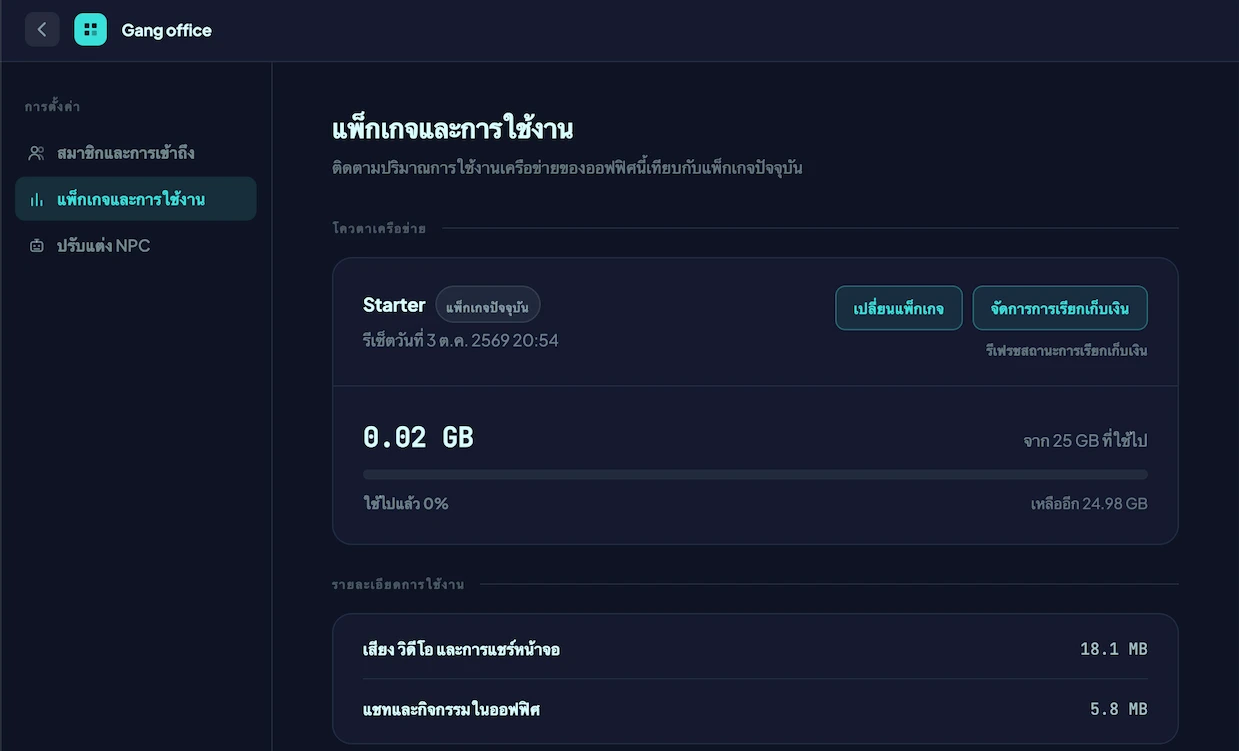
See all plans and features on the pricing page on the main site, or start now to manage your plan.
Help
In-app help
- Guide — Hidey stands near the entrance; click any time to take the welcome tour again, or pick just the topics you want to review.
- Quick overview — the very first item in the guide menu; clicking it dims the screen and labels everything currently on screen. Handy when you know what you want to do but not which button does it.
- Send feedback — found a bug or want a feature? Press the support chat button in the bottom-left corner of the screen (desktop only; phones and tablets do not have this button yet).
Frequently asked questions
Do I need to install anything?
Nothing to install. Hideout runs in the browser right away and supports the latest Chrome, Safari and Edge. If you'd rather keep Hideout open separately from your browser tabs, you can install the desktop app for Windows or macOS — see Download the app for details.
Are conversations stored?
Hideout does not record conversation audio or video automatically. All communication is real time only.
Need more help?
Contact The Gang Technology through our contact page.